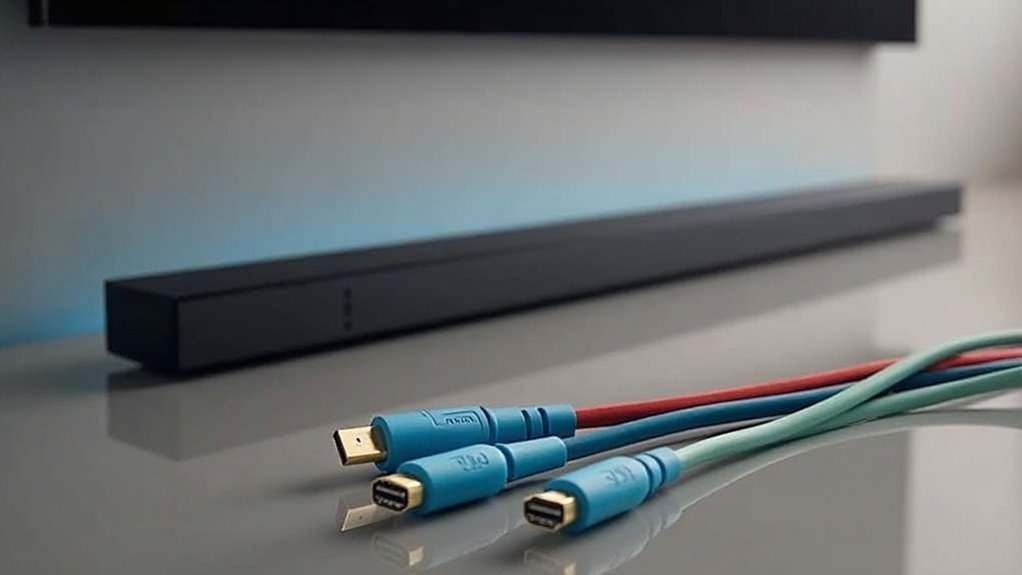
To enjoy Dolby Atmos with your soundbar, you need HDMI cables that support ARC or eARC. Look for cables labeled HDMI 2.0 or 2.1 for peak performance. Make sure both your TV and soundbar have ports marked “ARC/eARC.” If your TV lacks HDMI inputs, you can also use a digital optical (TOS-link) cable for good quality sound. Interested in learning more about setting up and troubleshooting your soundbar connection?
Key Takeaways
- Use HDMI cables labeled as HDMI 2.0 or 2.1 for connecting soundbars to ensure optimal performance and audio quality.
- Connect the soundbar to the TV using HDMI OUT (TV-ARC) and HDMI IN (ARC) ports for Dolby Atmos support.
- Ensure both the TV and soundbar have ARC or eARC labeled ports for seamless audio transmission.
- Select high-speed HDMI cables to minimize latency and maintain sound integrity for immersive audio experiences.
- If HDMI is unavailable, use a digital optical (TOS-link) cable for high-quality audio, but it may limit Dolby Atmos capabilities.
Understanding HDMI ARC and Earc
HDMI ARC and eARC are vital technologies that enhance your soundbar experience by simplifying connections between your TV and the soundbar.
HDMI ARC allows audio output from your TV back to the soundbar through a single HDMI cable, reducing clutter and simplifying setup.
On the other hand, HDMI eARC, which requires HDMI 2.1, supports advanced audio formats like Dolby Atmos and offers higher bandwidth for superior sound quality.
To take advantage of these features, ensure your devices have ARC or eARC labeled ports and check your TV’s settings menu.
Use your soundbar remote to adjust settings, ensuring everything is properly connected to your TV for optimal performance.
Choosing the Right HDMI Cable
Choosing the right HDMI cable is crucial for optimizing your soundbar’s performance. When selecting an HDMI cable for your soundbar, look for those labeled as HDMI 2.0 or 2.1, with HDMI 2.1 offering higher bandwidth for enhanced features like eARC support. Ensure that both your soundbar and TV’s HDMI ports are marked “ARC/eARC” to facilitate seamless digital audio transmission. It’s advisable to choose cables with a high-speed rating to minimize latency and maintain superior sound quality. If you are connecting multiple devices to your soundbar, confirm that all HDMI cables comply with Dolby specifications to ensure audio integrity throughout your setup.
| HDMI Cable Type | Features | Best For |
|---|---|---|
| HDMI 2.0 | Supports up to 18Gbps | Standard soundbar setups |
| HDMI 2.1 | Supports up to 48Gbps | Advanced soundbar setups |
| High-Speed | Minimizes latency | High-definition audio |
| ARC/eARC | Enables direct audio playback | Simple connectivity |
Alternative Connection Methods
How can you ensure a seamless audio connection for your soundbar when HDMI options are limited?
If your TV lacks HDMI input, consider using a digital optical (TOS-link) cable. This alternative method can transmit high-quality surround sound to your soundbar.
In older models, RCA cables can connect your TV to the soundbar, though they may not deliver the full Dolby experience.
While wireless Bluetooth connections are available, they often compromise sound quality and introduce lag.
To fully take advantage of your soundbar’s capabilities, ensure all devices support the necessary technologies for the best audio experience possible.
Setting Up Your Soundbar for Dolby Atmos
To set up your soundbar for Dolby Atmos, begin by connecting the soundbar to your TV using the HDMI OUT (TV-ARC) port on the soundbar and the HDMI IN (ARC) port on the TV.
Ensure both devices are compatible with HDMI 2.1 for eARC or HDMI 2.0 for ARC to achieve optimal audio performance.
Next, navigate to your TV’s audio output settings to enable Dolby Atmos compatibility and set HDMI e-ARC Mode to Auto.
If your soundbar doesn’t have an HDMI ARC/eARC port, alternatively connect it to the TV’s optical output using a digital optical cable.
Lastly, confirm that the content you’re playing supports Dolby Atmos to experience immersive audio.
Troubleshooting Connection Issues
What should you do if your Dolby Atmos soundbar isn’t producing audio? Start by checking the HDMI connections; confirm you’re using HDMI 2.0 or 2.1 cables with ports labeled ARC or eARC. Verify that HDMI-CEC is enabled in your TV settings to facilitate communication between your soundbar and TV. Also, configure your TV’s audio output settings to pass-through or Auto mode for proper Dolby Atmos signal transmission. If you are using optical or coaxial connections, ensure that the TV is set to output digital audio and that the correct input is selected on the soundbar.
| Action | Check | Outcome |
|---|---|---|
| Verify HDMI connections | Use HDMI 2.0/2.1 cables | Supports Dolby Atmos |
| Enable HDMI-CEC | Check TV settings | Facilitates device communication |
| Adjust audio output | Set to pass-through/Auto | Ensures correct signal transmission |







