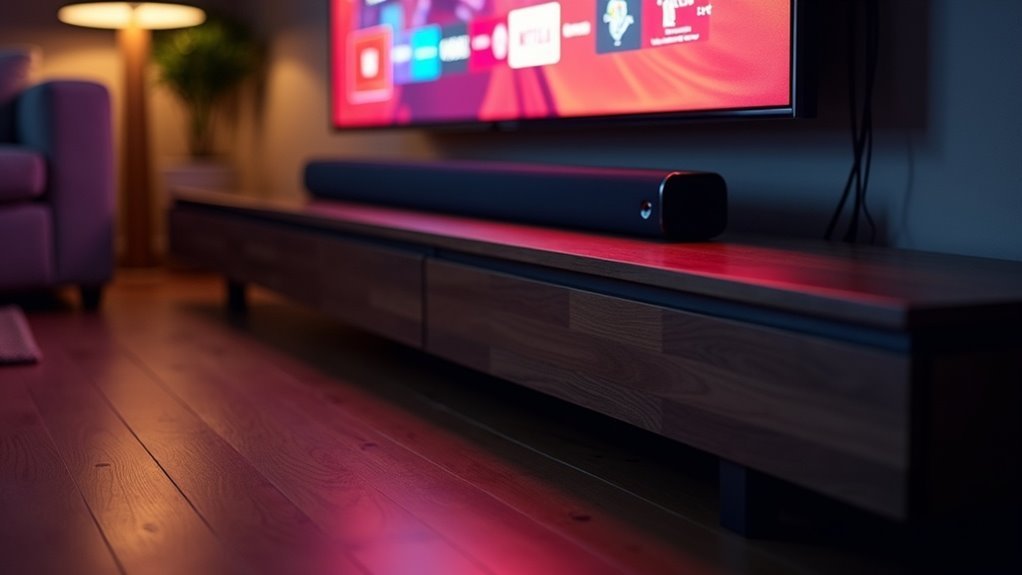
Yes, soundbars are compatible with Roku TVs, significantly enhancing your audio experience. By utilizing the HDMI ARC (Audio Return Channel) port, you can seamlessly connect your soundbar, enabling you to control its power and volume using your Roku TV remote. Just ensure that your soundbar supports HDMI ARC or features an optical port. To learn more about optimizing your sound setup and exploring various soundbar options, continue browsing our resources!
Key Takeaways
- Soundbars are compatible with Roku TVs if they support HDMI ARC or have an optical port for connection.
- Many Roku TVs are equipped with HDMI-ARC ports, making audio setup straightforward.
- Users can control soundbar power and volume using the Roku TV remote through HDMI ARC.
- To achieve seamless integration, ensure that HDMI-CEC is enabled on both the Roku TV and soundbar.
- For an enhanced audio experience, utilizing a Roku Soundbar can provide optimal performance.
Understanding HDMI-ARC and Its Importance
Have you ever wondered how to enhance your soundbar experience? HDMI-ARC (Audio Return Channel) is the key!
It allows you to connect your soundbar to your Roku TV using just one cable, simplifying your audio setup. With HDMI-ARC, you can control your soundbar’s power and volume directly from your TV remote, reducing remote clutter.
Connect your soundbar to your Roku TV with a single cable and control it effortlessly using your TV remote.
To take advantage of this feature, ensure your soundbar supports HDMI-ARC and adjust your TV settings accordingly. Many Roku TVs are equipped with HDMI-ARC ports, making it effortless to enjoy superior sound quality without the complications of a complex setup.
Elevate your audio experience today!
Connecting Your Soundbar to a Roku TV
Connecting your soundbar to a Roku TV is a straightforward process that can greatly enhance your audio experience.
Start by locating the HDMI ARC port on your TV and connect your soundbar there. Ensure your soundbar supports HDMI ARC or has an optical port for compatibility.
After connecting, navigate to the audio settings on your Roku TV and select the ARC option for audio output. If you’re using a Roku Ultra, make sure it’s connected to a separate HDMI port.
For optimal audio performance, consider using a Roku Soundbar, which is specifically designed for seamless integration with Roku TVs, ensuring an enhanced audio experience tailored to your entertainment needs.
Setting Up Audio Output for Optimal Performance
To set up your soundbar for optimal performance with your Roku TV, begin by connecting the soundbar to the TV using the HDMI-ARC port.
Once connected, navigate to your TV’s audio settings to ensure that the sound is directed through this connection.
This straightforward setup not only simplifies your audio configuration but also significantly enhances your overall viewing experience with rich, immersive sound.
Connection Methods Explained
While setting up your soundbar with a Roku TV, using the HDMI ARC port can greatly enhance your audio experience. This connection allows your TV to control the soundbar’s power and volume settings simultaneously, making it more convenient.
To guarantee peak sound performance, confirm that your Roku TV’s audio settings are configured for the ARC connection. You can also connect additional audio devices, like a wireless subwoofer or speakers, for a richer sound experience.
Regularly check for software updates on your Roku TV to maintain compatibility and improve performance with your soundbar and other audio devices.
Audio Settings Configuration
Configuring the audio settings on your soundbar connected to a Roku TV is crucial for getting the most out of your audio experience.
Follow these steps for ideal audio settings configuration:
- Connect your soundbar to the TV’s HDMI-ARC port.
- Go to the settings menu on your Roku TV, select “Audio,” and verify that “Audio output” is set to HDMI-ARC.
- Adjust the “Volume mode” to “Leveling” for consistent audio levels.
- Enable “Advanced audio” features like Dolby Digital for enhanced sound quality.
For an immersive surround sound experience, consider integrating your soundbar with additional speakers as needed.
These adjustments will greatly enhance your viewing experience and cater to your audience’s audio needs!
Exploring Different Soundbar Options for Roku TVs
When enhancing your audio experience with soundbars, exploring various options can significantly elevate your entertainment setup.
The Roku Soundbar and Streambars are exceptional choices, connecting seamlessly via HDMI-ARC for optimal audio output. This integration allows your TV to control the soundbar’s power and volume effortlessly.
Additionally, you can connect multiple audio devices, like wireless speakers, to further enrich your sound experience. The user-friendly Roku TV interface simplifies setup, offering easy options to configure your soundbar.
For an even more immersive experience, consider adding a Roku Wireless Bass or Wireless Bass Pro to beautifully complement your soundbar setup.
Troubleshooting Common Soundbar Connection Issues
If you’re having trouble connecting your soundbar to your Roku TV, start by checking the HDMI ARC connection—it’s essential for optimal sound output.
Next, ensure your audio output settings are correctly configured to utilize the soundbar.
If you’re still experiencing issues, consider troubleshooting any wireless pairing problems that might be affecting your soundbar setup.
Check HDMI ARC Connection
One common issue when connecting a soundbar to your Roku TV is ensuring the HDMI ARC connection is properly set up.
Follow these steps to troubleshoot:
- Connect your soundbar to the TV’s HDMI-ARC port, typically labeled as “ARC.”
- Confirm the TV’s audio output settings are set to use HDMI ARC.
- Make sure both the soundbar and TV support HDMI-CEC, and enable this feature in the TV settings.
- Use a high-speed HDMI cable that supports ARC functionality for optimal audio performance.
If problems persist, unplug both devices for a few minutes, then reconnect to reset the HDMI connection.
Verify Audio Output Settings
After confirming the HDMI ARC connection, the next step is to verify your soundbar’s audio output settings on your Roku TV.
Ensure you’ve selected the correct HDMI-ARC port for your soundbar. Navigate to the TV’s settings menu and check that the audio output is set to “External Speakers” or “Soundbar,” rather than “TV Speakers.”
It’s also crucial that your soundbar is powered on and that its volume is adjusted appropriately, as it may have independent controls.
If you continue to experience issues, refer to the Roku support article on soundbar setup for tailored troubleshooting tips specific to your device configuration.
Troubleshoot Wireless Pairing Issues
When you’re trying to enhance your audio experience with a soundbar connected to your Roku TV, wireless pairing issues can be frustrating.
Here are some steps to troubleshoot:
- Confirm that both the Roku TV and soundbar are powered on and connected to the same Wi-Fi network.
- Ensure the soundbar is in pairing mode; a flashing LED typically indicates this.
- Restart both devices to refresh their settings and attempt pairing again.
- Check compatibility by reviewing the manufacturer’s guidelines for wireless connection.
Enhancing Your Home Theater Experience With Soundbars
To truly elevate your home theater experience, incorporating a soundbar can make all the difference. The Roku TV Wireless Soundbar enhances audio quality, delivering crisp dialogue and creating a theater-like atmosphere. With HDMI ARC support, it allows for seamless control using your TV remote. Additionally, Bluetooth streaming enables you to enjoy your favorite music apps with ease. Here’s a quick overview of its benefits:
| Feature | Benefit |
|---|---|
| Audio Clarity | Improves dialogue clarity and minimizes loud commercials |
| HDMI ARC | Facilitates easy connection and control with your TV remote |
| Bluetooth Streaming | Allows music playback from various devices |
| Surround Sound Setup | Provides deeper audio immersion with additional speakers |
| User Satisfaction | Significantly enhances overall viewing enjoyment |
Explore how a soundbar can transform your audio experience and bring your favorite movies and music to life!







