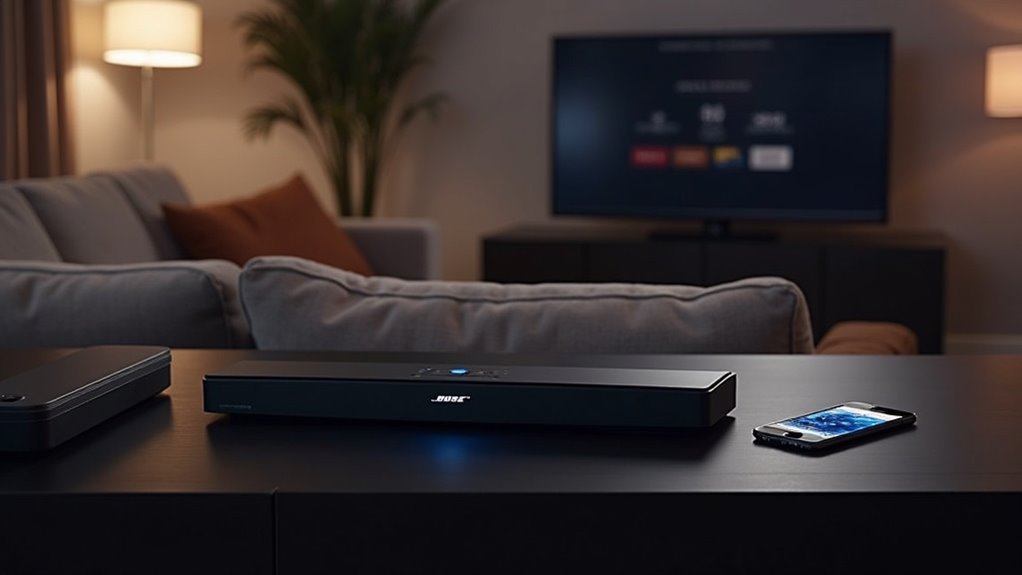
You can’t connect two Bose soundbars together for daisy-chaining, as they’re designed to function as standalone audio solutions. While they offer Bluetooth connectivity, they can’t send audio signals to each other. However, you can create a multi-room audio setup using the Bose app, allowing you to group soundbars for synchronized playback. To enhance your audio experience, consider the ideal placement and calibration of your soundbars. There’s more to explore about maximizing your sound system setup for an immersive audio experience.
Key Takeaways
- Bose soundbars cannot be daisy-chained or connected simultaneously for audio output.
- You can create a multi-room audio setup using the Bose app to group soundbars for synchronized playback.
- Ensure both soundbars are updated and compatible for optimal performance when grouping them.
- Proper placement and calibration of soundbars are crucial for an enhanced audio experience.
- Dual setups can improve surround sound capabilities, but may require additional equipment or adjustments.
Understanding the Limitations of Bose Soundbars
While you might be tempted to connect two Bose soundbars for a richer audio experience, it’s important to understand their inherent limitations.
Bose soundbars, including the Soundbar 700, are designed as standalone audio solutions and don’t support daisy-chaining or simultaneous connections for stereo or surround sound. They primarily function as Bluetooth speakers and lack the capability to send audio signals to another soundbar.
Although you can use the Bose app to connect multiple Bose speakers for multi-room audio, this feature doesn’t extend to soundbars.
For optimal performance, consider integrating a single soundbar with compatible subwoofers and surround speakers instead.
Exploring Multi-Room Audio Setup
If you’re looking to expand your audio experience throughout your home, utilizing multiple soundbars can create an effective multi-room audio setup. With the accompanying app, you can group your soundbars for synchronized playback, enhancing your gatherings or events.
| Feature | Benefit | Consideration |
|---|---|---|
| Synchronized Playback | Seamless audio experience | Compatibility check |
| Multi-Room Reach | Sound distribution | Room acoustics impact |
| Easy Control | Manage via the app | App knowledge required |
Using the Bose App for Speaker Grouping
Using the Bose app, you can easily group your soundbars for an enhanced audio experience.
Just select a soundbar, tap the “Group” button, and connect additional soundbars with a simple tap or by using the “Add All” option.
Once grouped, you’ll enjoy synchronized playback and have full control over audio settings for all devices from one convenient interface.
Grouping Soundbars Easily
To enhance your audio experience, you can easily group multiple soundbars through the dedicated app, allowing for synchronized playback across larger spaces.
Simply select one soundbar in the app, tap the “Group” button, and choose the other soundbar(s) to connect. Grouping soundbars creates an immersive surround sound experience, perfect for movie nights or gatherings.
You can also control each soundbar individually for volume adjustments via the app’s user-friendly interface.
Confirm all soundbars are compatible and updated to the latest firmware version to utilize the grouping feature effectively and enjoy an elevated audio experience.
Managing Audio Settings
While managing audio settings for your soundbars, the Bose app provides a seamless way to group and control multiple devices.
To group soundbars, simply select one, tap the “Group” button, and choose the others you want to connect. Once grouped, you can easily adjust the overall sound with the “Group Volume” slider, ensuring uniform audio levels.
Additionally, the app allows you to save custom group settings for quick access during future listening sessions. Just ensure that both soundbars are compatible and updated to the latest firmware for optimal audio performance while managing your settings.
Synchronizing Playback Across Devices
Synchronizing playback across your soundbars enhances your audio experience, particularly in larger spaces.
Using the dedicated app, you can easily group your devices for synchronized playback. Start by selecting one soundbar in the app, then tap the “Group” button and choose the second soundbar from the list of available devices.
Once grouped, both soundbars will play the same audio simultaneously, creating an immersive sound environment. The app also allows you to adjust the volume for the entire group or for each soundbar individually, ensuring optimal performance.
Just confirm both soundbars are compatible and updated for the best results.
Alternatives for Enhancing Audio Experience
How can you elevate your audio experience beyond just connecting two soundbars?
Consider enhancing your setup with additional soundbars that support multi-room audio capabilities, allowing synchronized playback throughout your home. Utilize the accompanying app to group soundbars for simultaneous audio, creating an immersive listening environment.
Enhance your audio setup with multi-room soundbars for synchronized playback and an immersive listening experience throughout your home.
For a true surround sound effect, integrate additional soundbars designed for surround sound, complementing your existing setup.
Don’t forget about features like Party Mode on compatible soundbars, enabling seamless audio across multiple devices during gatherings.
Finally, investing in soundbars with built-in subwoofers can enhance low-end sound, enriching your overall audio experience considerably.
Troubleshooting Connection Issues
When connecting two Bose Soundbars, you may experience common connection issues that can interrupt your audio experience.
Begin by ensuring that both soundbars are updated and powered on, as these basic steps often resolve many connection problems.
If you continue to face issues, try resetting the soundbars or verifying compatibility with your audio source to ensure it supports multiple outputs.
Common Connection Problems
Although connecting two Bose Soundbars can enhance your audio experience, you might encounter several common issues that can hinder the process.
First, ensure both soundbars are compatible and updated with the latest firmware. Incorrect audio output settings on your source device can prevent the soundbars from syncing via Bluetooth.
Additionally, interference from other wireless devices or physical obstructions could disrupt the connection, so position them wisely. If one soundbar fails to connect, consider resetting both devices and using the Bose app for troubleshooting.
Finally, verify that HDMI ARC or optical cable connections are secure to avoid audio transmission problems.
Troubleshooting Steps to Take
To successfully troubleshoot connection issues between two Bose Soundbars, start by ensuring both devices are powered on and positioned within range of each other, as distance can greatly impact connectivity.
Next, check that the firmware on both soundbars is updated to the latest version; outdated software can lead to problems.
Utilize the Bose app to initiate pairing, ensuring compatibility with multi-device setups.
If you’re using HDMI ARC, confirm that you’re connecting to the correct HDMI ports and that your TV settings support multiple audio outputs.
Finally, restart both soundbars and your TV to clear any temporary glitches.
User Community Insights and Experiences
Many users in the soundbar community have shared their successful experiences connecting two Bose Soundbar 700s, resulting in a noticeably enhanced audio experience for home theaters.
They often recommend using the Bose app to effectively manage and configure settings, ensuring ideal sound distribution in larger spaces. Users report that this setup greatly boosts surround sound capabilities, making movie nights more immersive.
Using the Bose app for configuration enhances sound distribution, creating an immersive surround sound experience for movie nights.
Proper placement and calibration of both soundbars are essential for achieving the best audio performance.
While connecting two soundbars is beneficial, be prepared for potential additional equipment or adjustments based on your existing audio setup to maximize the experience.







