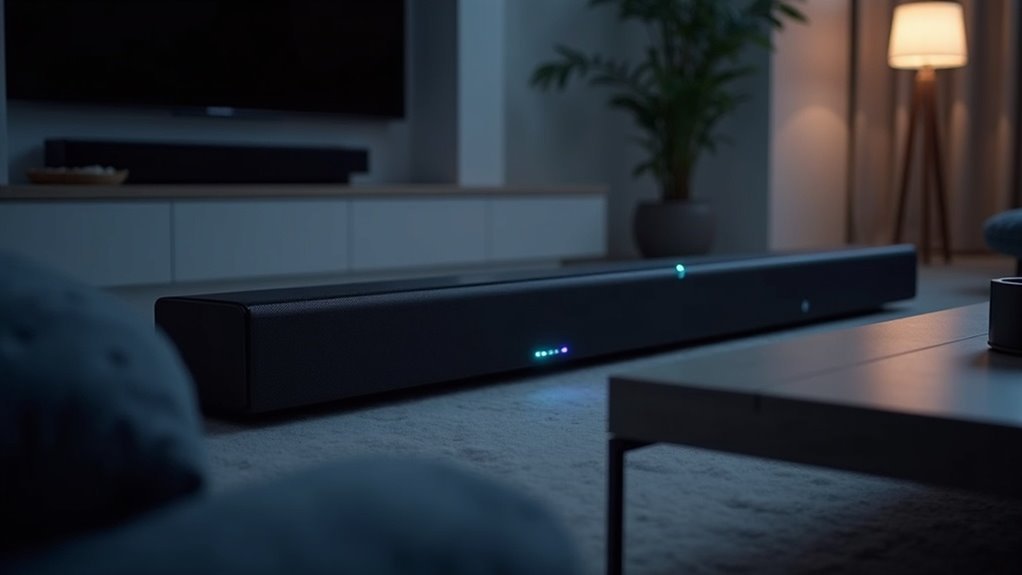
To check if Dolby Atmos is playing on your soundbar, look for a cyan indicator light, which signifies that Dolby Atmos features are active. You can also press the INFO button on your soundbar remote to receive immediate feedback on your current audio format. The display should confirm if you’re experiencing Dolby Atmos playback. Additionally, pay attention to spatial sound effects, such as overhead rain or footsteps, which can indicate that your soundbar is functioning properly. Continue exploring to learn more about optimizing your audio experience with your soundbar.
Key Takeaways
- A cyan light on the soundbar indicates that Dolby Atmos features are active.
- You can press the soundbar’s INFO button to confirm the current audio format.
- An on-screen display or app may provide real-time feedback about the audio format being played on your soundbar.
- Spatial sound effects, such as overhead sounds, are a sign of proper Dolby Atmos functioning in your soundbar.
- Ensure that HDMI connections are secure and support eARC for optimal Dolby Atmos transmission through your soundbar.
Understanding Soundbar Indicators
When you’re using a soundbar, understanding the indicator lights is essential for optimizing your audio experience.
For instance, when playing Dolby Atmos content, the indicator lights turn cyan, signaling that height effects are active. This visual cue confirms your soundbar is utilizing its full capabilities.
Conversely, a green light indicates standard Dolby audio formats, showing the soundbar functions correctly but isn’t engaging Atmos features.
Regularly monitoring these indicator lights aids in troubleshooting any audio issues, ensuring you maximize the soundbar’s functionality.
Check your soundbar’s app or user manual for specifics on different audio formats and their corresponding indicators.
Utilizing the INFO Button
Understanding the indicator lights sets the stage for effectively utilizing the INFO button on your soundbar remote. By pressing the INFO button, you access immediate feedback on your audio settings and the audio signal currently being processed.
The soundbar’s indicator lights change color, with a cyan light typically signifying Dolby Atmos playback. This display shows relevant information for three seconds, allowing you to confirm if Atmos is active without navigating complex menus.
Familiarizing yourself with the INFO button ensures that your soundbar is connected and decoding Dolby Atmos correctly, enhancing your overall listening experience during playback.
Observing Audio Format Changes
As you switch between different audio formats on your soundbar, it’s crucial to observe how the indicator light reflects these changes. When your soundbar receives Dolby Atmos content, the indicator light turns cyan, signaling that active height audio effects are in use.
If it remains green, that indicates standard Dolby audio is playing instead. Many soundbars also feature an on-screen display or companion app that provides real-time feedback on the current audio format, ensuring you’re aware of any shifts.
Additionally, you can check your TV or external device to confirm if Dolby Atmos is being transmitted, as some will explicitly display “Atmos” as the active audio format, enhancing your home theater experience.
Listening for Spatial Sound Effects
Noticing the indicator light change is just the beginning of experiencing Dolby Atmos on your soundbar.
To truly appreciate the spatial sound effects, listen for sounds moving overhead, like rain or flying objects. You’ll know Dolby Atmos is functioning properly when you hear audio cues, such as bullets ricocheting or footsteps appearing to shift around the room.
Experience the magic of Dolby Atmos with sounds like rain or footsteps that move overhead, creating an immersive audio landscape.
Height effects should be evident, with sounds originating from above your soundbar. If surround sound is only apparent from the sides or front, your soundbar’s Dolby Atmos may not be fully engaged.
Focus on these immersive qualities to enhance your overall sound quality experience with your soundbar.
Troubleshooting Dolby Atmos Issues
Have you checked the settings on your soundbar when experiencing issues with Dolby Atmos?
Start by verifying that your soundbar’s audio settings are configured to output Dolby Atmos. If the indicator lights on your soundbar aren’t showing the expected color, it may not detect the format.
Ensure that all HDMI connections are secure and that both your TV and soundbar support HDMI (eARC) for optimal audio transmission.
Additionally, confirm that the content you’re playing is encoded with Dolby Atmos.
If problems persist, consult your soundbar’s manual for specific troubleshooting steps tailored to your model and manufacturer.







