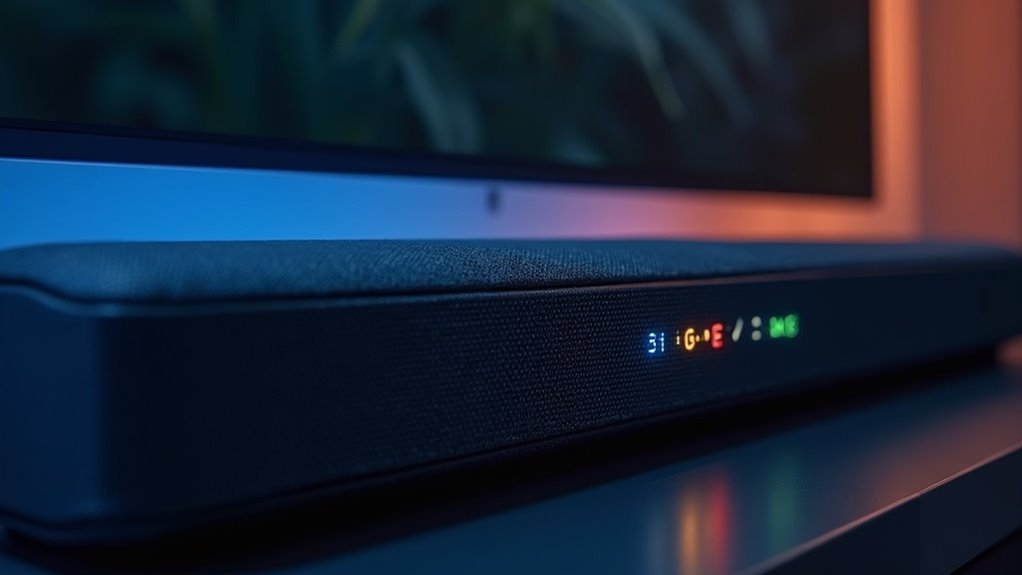
To confirm eARC is active on your soundbar, look for a dedicated HDMI port labeled “eARC” or “ARC.” You may notice indicator lights illuminating, and on-screen messages like “eARC” or “Dolby Atmos” may appear. If the audio plays without dropouts and maintains high quality, this indicates a stable eARC connection. Additionally, checking the settings on both your TV and soundbar can provide further assurance of the eARC functionality. Explore more details to optimize your soundbar setup experience.
Key Takeaways
- Look for a dedicated HDMI port on the soundbar labeled “eARC” or “ARC,” which indicates an active connection for optimal audio performance.
- Check for indicator lights that illuminate or change color when eARC is successfully engaged, signaling a proper connection.
- On-screen messages like “eARC” or “Dolby Atmos” confirm that the soundbar is receiving audio through eARC, enhancing your listening experience.
- The absence of audio dropouts during playback suggests stable eARC functionality and high-quality audio delivery, ensuring uninterrupted enjoyment.
- Access the soundbar’s settings menu for detailed information confirming the HDMI eARC status and optimizing your audio setup.
Understanding Earc and Its Benefits
When you want to elevate your home theater experience with a soundbar, understanding eARC (Enhanced Audio Return Channel) is essential.
eARC supports higher bandwidth audio transmission, allowing lossless audio formats like Dolby Atmos and DTS:X, which greatly enhance audio quality when paired with your soundbar.
Unlike standard ARC, eARC transmits sound in its original form without compression, making it perfect for audiophiles who seek the best audio experience.
This technology is part of the HDMI 2.1 specification, ensuring compatibility with the latest soundbars and devices.
To benefit from eARC, both your TV and soundbar must have compatible HDMI ports, enabling features like automatic lip-sync correction and simplified controls for an ideal viewing experience.
Checking for Earc Compatibility
How can you ensure your soundbar and TV are eARC compatible? First, verify that both devices have HDMI ports labeled “eARC” or “ARC.”
eARC significantly enhances audio quality compared to standard ARC, making it crucial for an optimal sound experience. Most Samsung TVs from 2020 onward, including QLED, Neo QLED, and OLED models, support eARC, as do soundbars manufactured between 2020 and 2023.
To achieve peak performance, use an eARC-compatible HDMI cable, such as High-Speed or Ultra High Speed. Additionally, make sure to enable the HDMI eARC Mode in your TV settings.
Lastly, refer to your soundbar’s user manual for specific instructions to confirm eARC functionality.
Identifying Earc Indicators on the Soundbar
To identify eARC indicators on your soundbar, start by looking for a dedicated HDMI port labeled “eARC” or “ARC.”
Check for any indicator lights that illuminate when an eARC connection is active, often shining green.
Additionally, the display may show messages like “eARC” or “Dolby Atmos,” confirming that an eARC-compatible source is connected.
This information is essential for optimizing your soundbar’s performance and ensuring compatibility with your audio devices.
Visual Indicators on Soundbar
Identifying visual indicators for eARC on a soundbar is essential for ensuring optimal audio performance.
Look for an “eARC” label on the HDMI port or within the settings menu, confirming eARC support. Many soundbars are equipped with LED indicators that illuminate or change color when eARC is active, providing a quick connection status check.
Additionally, some models may display on-screen messages when an eARC connection with a compatible TV is established. Always consult the user manual for specific icons or indicators, as these can vary between models.
Lastly, make sure your soundbar’s firmware is up to date to enhance eARC functionality and potentially introduce new visual indicators.
Audio Format Information Display
When you connect your soundbar to a compatible TV via eARC, it’s essential to monitor the audio format information displayed, as this can confirm the connection’s effectiveness.
Here are key indicators to look for:
- On-Screen Messages: The soundbar may show messages indicating the active audio format, like Dolby Atmos or DTS:X.
- Indicator Light: An active eARC connection often triggers a specific light on the soundbar.
- Settings Menu: You can check the soundbar’s settings for information on the current audio format and connection type when using HDMI cables.
These details guarantee eARC is operational and delivering high-quality sound, ensuring you get the best audio experience from your soundbar.
TV Settings for Earc Activation
To activate eARC for your soundbar, begin by enabling the Anynet+ option and HDMI eARC Mode in your TV’s settings menu.
Next, ensure that your audio output settings are configured correctly to utilize the eARC functionality.
This setup will enhance your audio experience with your soundbar, delivering high-quality sound.
Enable Anynet+ Option
Enabling the Anynet+ option is crucial for activating eARC functionality on your Samsung TV, which enhances the performance of your soundbar by allowing seamless communication between your TV and connected devices.
Follow these steps to ensure your soundbar works optimally:
- Press the Home button, then navigate to General > External Device Manager.
- Select Anynet+ and verify that it’s enabled.
- Confirm that your soundbar is connected to the HDMI eARC port and set to the correct input for the best audio experience.
Activate HDMI Earc Mode
After ensuring the Anynet+ option is enabled, the next step is activating HDMI eARC mode on your Samsung TV to optimize your soundbar’s performance.
Start by pressing the Home button to navigate to the settings, then select General > External Device Manager. Here, make sure to explicitly enable HDMI eARC, as it’s off by default.
For the best audio quality, use an eARC-compatible HDMI cable. Connect your soundbar to the designated eARC port on the TV, and switch the source to ‘D. In’ for automatic switching.
Lastly, remember to check for firmware updates on both the TV and soundbar to enhance eARC functionality and overall sound quality.
Verify Audio Output Settings
Before enjoying the enhanced audio experience with your soundbar, it’s crucial to verify your TV’s audio output settings for eARC activation.
Follow these steps to guarantee proper configuration:
- Connect your soundbar to the HDMI eARC port on the TV, which is typically labeled accordingly.
- Navigate to General > External Device Manager > Anynet+ (HDMI-CEC) and confirm it’s activated.
- Check the audio output settings to validate that they direct audio through the HDMI eARC port rather than the internal speakers.
This will ensure that you’re getting the best sound quality from your soundbar.
Soundbar Settings and Configuration
To ensure optimal performance of your soundbar with eARC functionality, begin by verifying its connection to the HDMI eARC port on your TV.
After that, navigate through the soundbar settings to ensure that HDMI eARC mode is enabled. This may involve exploring various menu options on your device.
Look for indicators, such as a specific LED light, which might illuminate when eARC is active.
Additionally, make sure the audio formats are configured to support eARC-compatible options like Dolby Atmos or Dolby TrueHD.
For comprehensive instructions, refer to your soundbar’s user manual, as settings can differ by model.
Troubleshooting Earc Connection Issues
When troubleshooting eARC connection issues with your soundbar, it’s essential to systematically check each component in your audio setup.
When facing eARC connection challenges with your soundbar, methodically inspect every element of your audio setup for optimal results.
Follow these steps to ensure everything is configured correctly:
- Verify HDMI Cable: Confirm that you’re using an eARC-compatible HDMI cable connected to the designated eARC ports on both your TV and soundbar.
- Check Audio Output Settings: Ensure the TV’s audio output settings are directed to the soundbar; incorrect settings can disrupt the eARC functionality and affect sound quality.
- Activate eARC Mode: Make sure eARC mode is enabled in the TV settings, as both your TV and soundbar must support and activate eARC for optimal audio performance.
Visual Confirmation of Earc Engagement
Visual confirmation of eARC engagement on your soundbar can be achieved through several indicators that provide immediate feedback.
Look for messages like “eARC Connected” or “HDMI eARC” on the soundbar’s display, signaling that the connection is active. Additionally, the soundbar’s LED lights may change color or blink, indicating successful eARC detection.
You can also access the settings menu to find a confirmation screen displaying the HDMI eARC status.
Finally, the absence of audio dropouts or quality degradation during playback further suggests that eARC is functioning correctly, ensuring you enjoy high-quality audio from your soundbar without interruptions.







