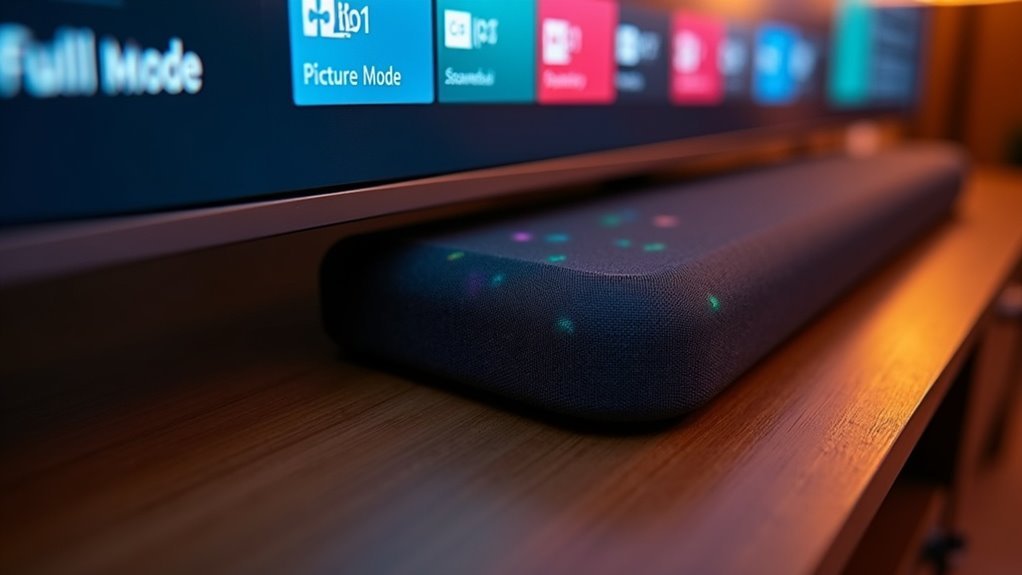
TV picture modes can greatly affect soundbar latency. “Game Mode” minimizes processing delays, providing a synchronized audio-visual experience that is particularly beneficial for gaming. In contrast, modes such as “Cinema,” “Dynamic,” and “Sports” often introduce lag due to their enhanced processing features, which can disrupt the audio sync that soundbars aim to deliver. Using “Standard” mode can offer a balanced approach with minimal latency, making it a suitable choice for everyday viewing. To achieve the best performance with your soundbar, understanding how each picture mode impacts audio sync is crucial; you may also discover additional tips to further enhance your soundbar setup.
Key Takeaways
- “Game Mode” minimizes processing and enhances audio synchronization with soundbars, significantly reducing latency.
- “Dynamic” and “Cinema” modes often introduce delays due to advanced audio and video processing features, which may affect the overall soundbar experience.
- “Standard” mode provides a balanced experience with minimal latency and is generally recommended for optimal soundbar performance.
- “Sports” or “Action” modes may increase latency due to motion smoothing effects on the video, impacting soundbar synchronization.
- Testing various picture modes is essential to identify the best setting for achieving optimal audio-visual sync with your soundbar.
Understanding Soundbar Latency
When you’re enjoying your favorite show, the last thing you want is a delay between the visuals and the audio.
Soundbar latency, which refers to the delay caused by audio signal processing, can significantly disrupt your viewing experience. Formats such as DTS or Dolby Digital often introduce this delay, and it can be further exacerbated by Bluetooth connections.
Soundbar latency can disrupt your viewing experience, especially with formats like DTS or Dolby Digital and Bluetooth connections.
To minimize latency with your soundbar, consider using optical connections instead. Many soundbars and TVs come equipped with audio delay settings that allow you to adjust synchronization. Additionally, disabling features like virtual surround sound can help reduce lag.
Switching to PCM audio format might also improve sync, although it could limit your multichannel audio options.
The Impact of Picture Modes on Audio Sync
Soundbar latency isn’t just influenced by the audio source; the TV’s picture mode also plays a considerable role in maintaining audio-visual sync. Picture modes like “Game Mode” minimize processing, which helps enhance synchronization with your soundbar. In contrast, modes such as “Dynamic” or “Cinema” often introduce delays due to additional processing.
| Picture Mode | Processing Level | Audio Sync Impact |
|---|---|---|
| Game Mode | Minimal | Positive |
| Dynamic | High | Negative |
| Standard | Moderate | Neutral |
Recommended Picture Modes for Optimal Performance
To achieve optimal performance with your soundbar, selecting the right picture mode on your TV is crucial.
Recommended picture modes include “Game Mode,” which minimizes input lag and enhances soundbar synchronization by reducing video processing. Alternatively, “Standard” mode offers a balanced approach with minimal latency, making it another solid choice for soundbar usage.
Be cautious with “Sports” or “Action” modes, as their motion smoothing features can increase latency and disrupt audio sync.
Finally, “Cinema” or “Movie” modes may introduce delays due to advanced processing.
Testing various modes while monitoring audio sync is essential, as results can differ greatly across TV models, ultimately affecting your soundbar experience.
Troubleshooting Audio Delay Issues
Selecting the right picture mode can greatly enhance your audio experience with a soundbar, but issues with audio delay may still arise.
If you’re experiencing this problem, first check if features like motion smoothing or dynamic contrast are enabled on your TV; these can introduce lag.
Turning off settings such as “virtual surround” or “enhanced audio” on the soundbar may also help.
When using HDMI ARC or optical connections, switch the audio format to PCM for better synchronization with the soundbar.
Additionally, try directly connecting devices to your soundbar instead of routing the audio through the TV’s speakers, as this often resolves audio delay issues by allowing the soundbar to process audio first.
Best Practices for Connecting Your Soundbar
When connecting your soundbar, choosing the right cable type can greatly enhance your audio experience. Opt for an optical cable to reduce audio latency, as it provides faster synchronization compared to Bluetooth.
Activate your TV’s game mode when using an optical connection to minimize input lag and improve your gaming experience. It’s best to avoid sound processing features like virtual surround or dialogue enhancers, as these can introduce additional delays.
If you encounter audio sync issues, adjust the audio delay settings on your TV or soundbar. For optimal performance, connect source devices directly to the soundbar to streamline audio processing.







