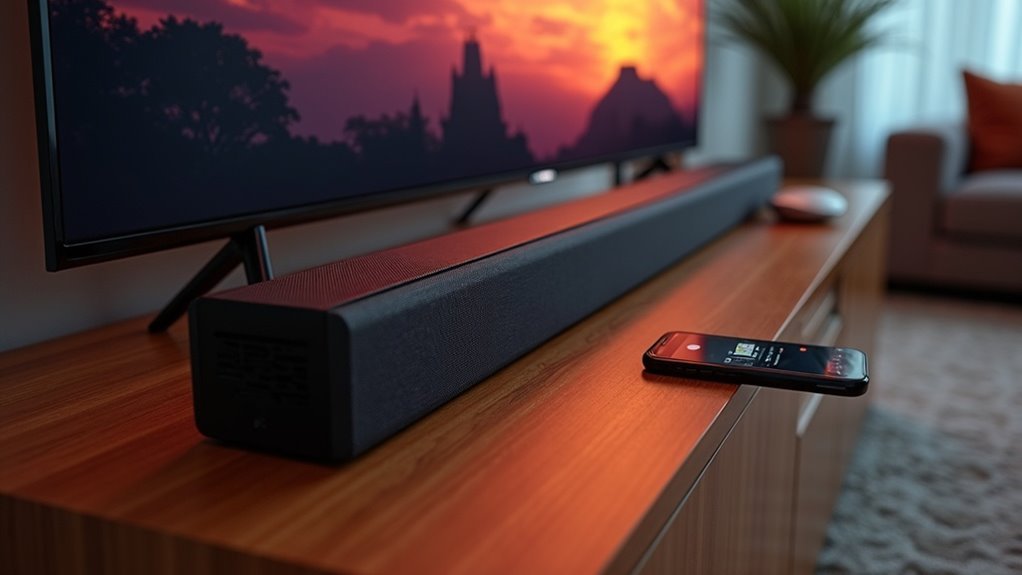
Yes, a soundbar can absolutely work with Wi-Fi only. This connection offers superior sound quality, a wider range, and lower latency compared to Bluetooth. You’ll also enjoy features like multiple device support and enhanced security. Just ensure your TV is compatible, connected to a Wi-Fi network, and both devices are on the same frequency. If you want to know more about setting it up, you’ll find helpful tips ahead on our website dedicated to soundbars.
Key Takeaways
- A soundbar can work with Wi-Fi only if it supports Wi-Fi connectivity and is compatible with your TV model.
- Ensure both the soundbar and TV are connected to the same Wi-Fi network frequency for proper functionality.
- Wi-Fi streaming typically provides superior sound quality and lower latency compared to Bluetooth connections, making it an ideal choice for soundbars.
- Regular firmware updates are essential for maintaining optimal performance and connectivity with Wi-Fi in soundbars.
- Check for network stability to prevent disruptions in audio streaming when using Wi-Fi exclusively with your soundbar.
Benefits of Using Wi-Fi Over Bluetooth
When you’re choosing between Wi-Fi and Bluetooth for your soundbar, you’ll discover that Wi-Fi offers several significant advantages that can greatly elevate your audio experience.
First, a Wi-Fi network provides a wider range, allowing you to position your soundbar more freely without sacrificing connectivity.
You’ll appreciate the enhanced sound quality, as Wi-Fi streams higher resolutions and complex audio formats effortlessly, resulting in a richer listening experience.
Additionally, it supports multiple devices simultaneously, making it seamless to connect various gadgets to your soundbar.
With lower latency, audio syncs better with video content, ensuring a more cohesive viewing experience.
Lastly, enhanced security features protect your streaming from unauthorized access, contributing to a smoother and more enjoyable experience overall.
Check Before Connecting the Soundbar
Before connecting your soundbar, it’s important to verify that your TV model is from 2013 or later to ensure compatibility.
Additionally, check that your TV is connected to a functioning Wi-Fi network and that both your soundbar and TV are operating on the same frequency, either 2.4GHz or 5GHz.
Lastly, remember to update the firmware on both your TV and soundbar to achieve optimal performance and enhance your audio experience.
TV Model Compatibility
To ensure your soundbar functions perfectly with your TV, it’s important to verify model compatibility before making any connections.
Check that your TV model was released after 2013 for proper Wi-Fi connection support with your soundbar. Make sure it’s connected to a reliable Wi-Fi network and that both devices are using the same wireless router and frequency band—either 2.4GHz or 5GHz.
Additionally, check for firmware updates on both the TV and soundbar, as these can improve compatibility and performance.
Lastly, reduce the number of devices on the network to minimize interference, allowing you to fully enjoy the high-quality audio your soundbar provides.
Wi-Fi Network Status
A reliable Wi-Fi network is essential for connecting your soundbar seamlessly.
Before you proceed, check these important items:
- Ensure your soundbar is compatible with Wi-Fi connectivity and supports the necessary features for seamless integration.
- Confirm that both your soundbar and TV are connected to the same wireless router frequency (2.4GHz or 5GHz) for optimal performance.
- Look for any devices that may be interfering with your Wi-Fi network, as this can disrupt the wireless connection to your soundbar.
Firmware Updates Needed
Checking your Wi-Fi network status sets the stage for a smooth soundbar connection, but don’t overlook the importance of firmware updates specific to your soundbar and TV.
Before you connect your soundbar, ensure that both devices have the latest firmware installed. These updates can enhance sound quality and fix bugs, ensuring a seamless audio experience.
Most soundbars and TVs released after 2013 allow for easy firmware updates via apps or direct internet connections. Regularly checking for updates can prevent potential connectivity issues and improve performance.
Set both your soundbar and TV to automatically check for updates, so you can enjoy uninterrupted audio performance when connecting your soundbar.
How to Connect Your Soundbar to the Wi-Fi Network
To connect your soundbar to the Wi-Fi network, begin by selecting Wi-Fi mode using the Source button on your soundbar or remote.
Then, download the SmartThings app on your mobile device to facilitate the connection process.
Finally, follow the app’s instructions to get your soundbar online, ensuring it’s ready to elevate your audio experience.
Select Wi-Fi Mode
How can you effortlessly connect your soundbar to your Wi-Fi network? Start by selecting the Wi-Fi mode, allowing your soundbar to communicate wirelessly. Here’s how:
- Press the Source button on your soundbar or remote to activate Wi-Fi mode.
- Ensure your mobile device is connected to the same Wi-Fi network as your soundbar for a smooth setup.
- Verify that both your soundbar and the device you’re using are on the same router frequency (2.4GHz or 5GHz) for optimal performance.
Download SmartThings App
Before you can fully experience your soundbar’s wireless capabilities, it’s essential to download the Samsung SmartThings app on your mobile device.
Ensure your device is connected to the same Wi-Fi network as your soundbar for a smooth setup. After installing the app, launch it and tap the Add icon (+).
Select AV, then choose your soundbar brand to initiate the connection process. Next, set your soundbar to Wi-Fi mode by pressing the Source button.
Finally, follow the on-screen instructions in the SmartThings app to complete the Wi-Fi connection setup for your soundbar.
Enjoy an enhanced audio experience with your soundbar!
Follow Connection Instructions
Connecting your soundbar to a Wi-Fi network is a straightforward process that enhances your audio experience. Follow these steps to get started:
- Press the Source button on your soundbar or remote to select Wi-Fi mode.
- Ensure your mobile device is connected to the same Wi-Fi network as your TV.
- Open the Samsung SmartThings app, tap the Add icon (+), select AV, choose your soundbar brand, and follow the prompts.
If your soundbar disconnects after use, you can easily reconnect it through the TV’s Sound Menu by selecting the soundbar Wi-Fi connection option.
Enjoy seamless audio with a reliable Bluetooth connection for an enhanced soundbar experience!
Connecting the TV & Soundbar Together Using Wi-Fi
To set up your soundbar with your TV over Wi-Fi, first ensure that both devices are connected to the same wireless router and operating on the same frequency band, either 2.4GHz or 5GHz.
Navigate to the Sound Menu on your TV and select the Soundbar Wi-Fi connection, which will allow the TV to create a Wi-Fi Access Point.
If your soundbar disconnects after using Wi-Fi for other purposes, simply reconnect it through the TV’s sound settings.
Additionally, it’s important to check for firmware updates on both devices to ensure optimal performance.
Make sure you have a stable network environment to prevent interference and enjoy a seamless audio experience with your soundbar.
Wi-Fi Vs Bluetooth: Which Is Better for Streaming Music?
How do you choose between Wi-Fi and Bluetooth for streaming music from your soundbar?
1. Sound Quality: Wi-Fi provides superior audio quality with advanced codecs, ensuring your soundbar delivers the best possible listening experience.
Bluetooth, on the other hand, often compromises sound quality.
2. Device Connections: Wi-Fi allows your soundbar to connect to multiple devices simultaneously without sacrificing audio quality, while Bluetooth typically connects to only one device at a time.
3. Range and Stability: Wi-Fi boasts a wider range and is less susceptible to interference, making it ideal for larger living spaces where your soundbar might be located far from the source.
If you prioritize high-quality sound and stable connections for your soundbar, Wi-Fi is the optimal choice.
However, for quick and casual listening, Bluetooth offers a convenient setup. Choose wisely based on your audio needs!
Bluetooth Pros and Cons
While Bluetooth offers a convenient way to connect soundbars wirelessly, it’s important to consider its pros and cons before making a choice for your audio setup.
On the positive side, Bluetooth connections are quick and simple to establish, allowing you to pair your soundbar with devices with just a few taps.
However, the audio quality generally doesn’t match that of Wi-Fi, which may be a drawback for those seeking high-fidelity sound. Additionally, Bluetooth has a limited range of about 30 feet, which can lead to audio interruptions if you move too far away from the source.
Furthermore, it tends to consume more battery power and often lacks support for advanced audio codecs, ultimately impacting sound transmission quality.
Wi-Fi Streaming Pros and Cons
When you’re considering soundbar options for your home, Wi-Fi streaming presents both advantages and challenges. Here are some points to keep in mind:
- Superior Sound Quality: Enjoy high-fidelity audio from your soundbar without the compression associated with Bluetooth.
- Stable Connection: Experience reliable sound from your soundbar regardless of distance from your device.
- Advanced Features: Many Wi-Fi-enabled soundbars offer spatial audio and music app integration for an enhanced listening experience.
However, setting up Wi-Fi streaming with your soundbar can be complex and requires a stable internet connection.
Variability in your network can also impact audio performance, so ensure your Wi-Fi setup is solid for maximum sound quality from your soundbar.
Recommendations for Optimal Setup
To maximize your soundbar’s performance using Wi-Fi exclusively, consider the following setup recommendations to enhance your audio experience.
| Setup Step | Description |
|---|---|
| Confirm TV Compatibility | Ensure your TV model is from 2013 or later and connected to a stable Wi-Fi network. |
| Same Frequency Connection | Connect both the TV and soundbar to the same frequency band of your wireless router. |
| Use SmartThings App | Utilize the SmartThings app to streamline the Wi-Fi connection setup for seamless integration into your home network. |
Finally, don’t forget to regularly check for firmware updates on both your soundbar and TV. This will ensure ongoing compatibility and performance improvements while using Wi-Fi, allowing you to enjoy your entertainment to the fullest.







